Ready-made flow · Sharp phone and desktop wallpapers, upscaled
AI Wallpaper Generator
Idyllic's AI wallpaper generator turns one line about a scene into custom wallpapers for your phone or desktop. An AI writer plans a different composition for each, FLUX 3 paints them at 9:16 or 16:9 with a calm area for your clock and icons, and every wallpaper is upscaled so it stays sharp on a high-resolution screen.
- Shape
- 9:16 phone or 16:9 desktop
- You get
- 3 wallpapers, upscaled 2x
- Image model
- FLUX 3
- Credits
- 42 for 3 wallpapers
- Plan
- Plus and up, preview free
Real output · no retouching
One brief.
3 results.
- What should it show?
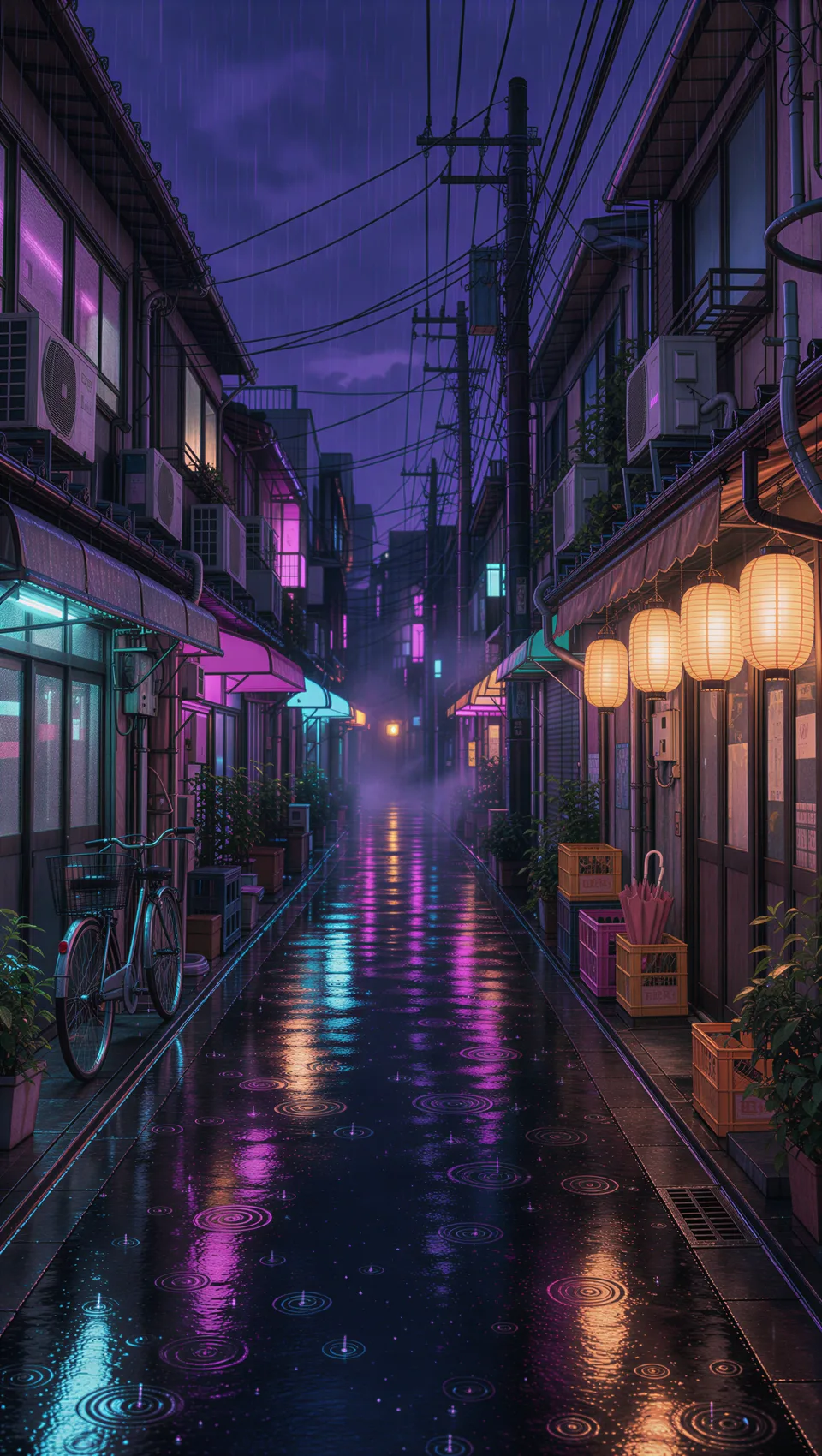
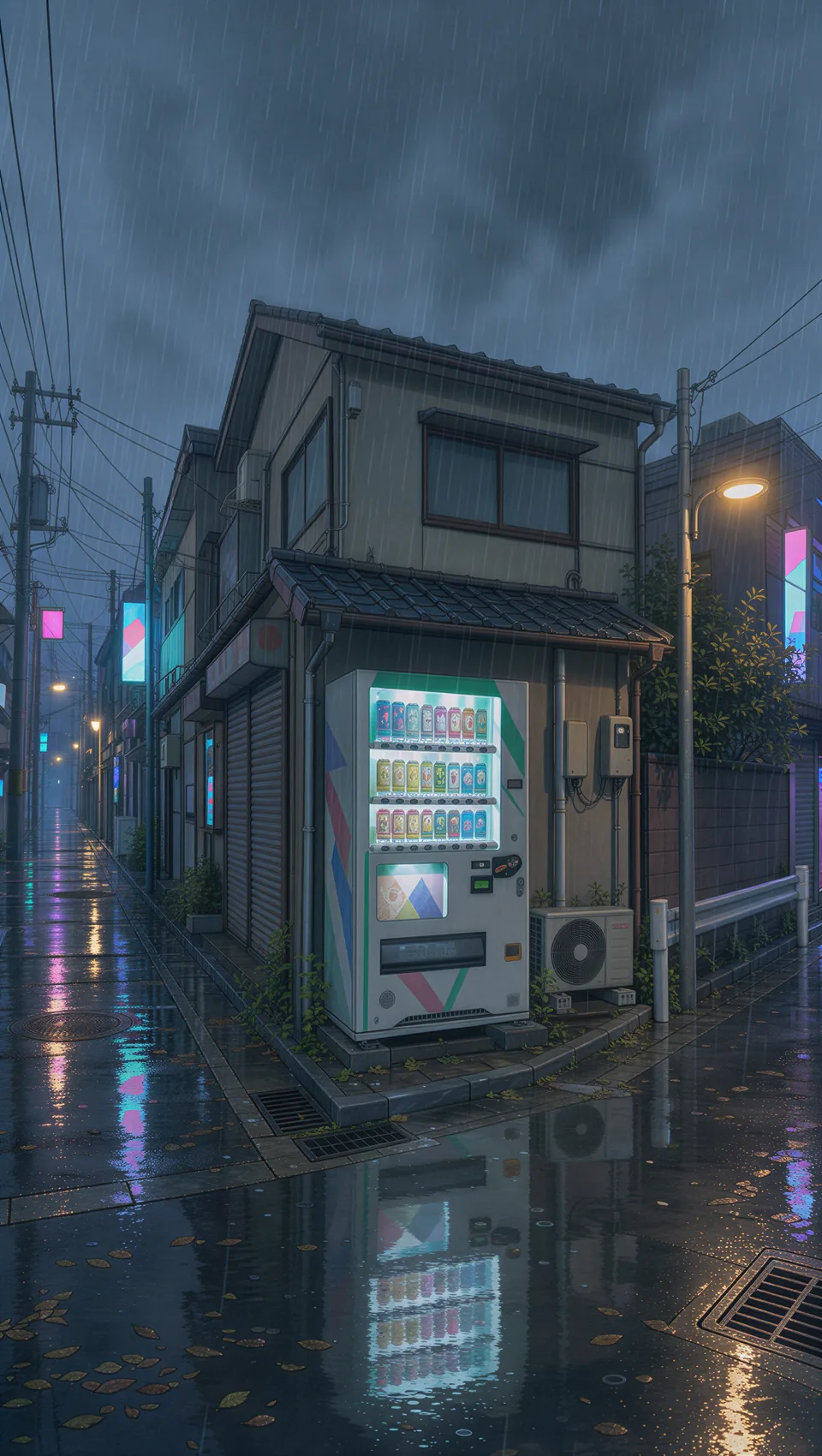
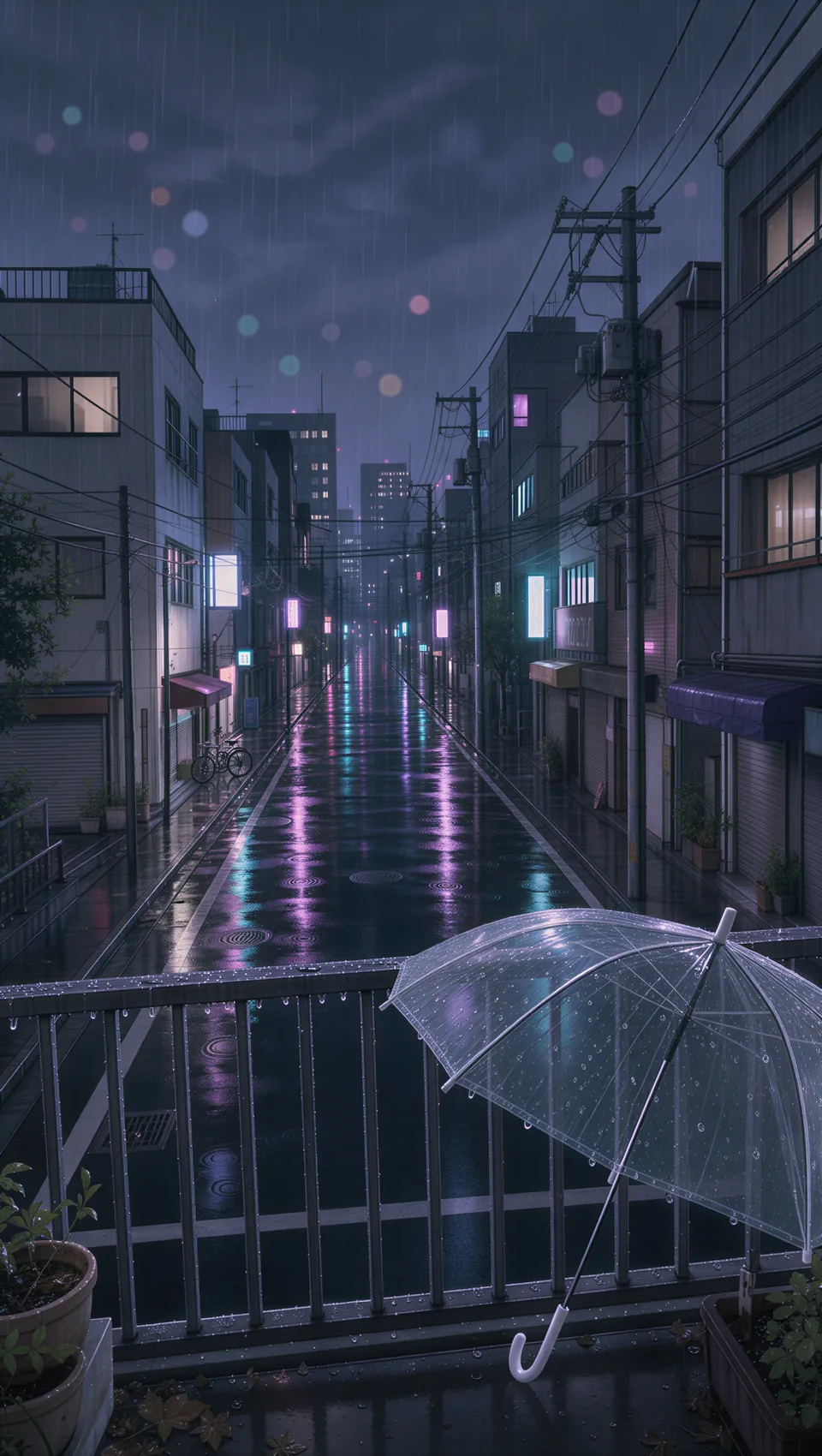
- A quiet Tokyo street in the rain at night, neon reflections
- Screen
- Phone
- Style
- Anime
How to make it
Four steps, about a minute of your time. These are real screens from the run above.
- 01
Describe the scene
Fill in what it should show, pick Phone or Desktop under Screen, choose a style (Cinematic, Anime, Minimal, Abstract, Fantasy or Dark) and set how many wallpapers you want.
Open the flow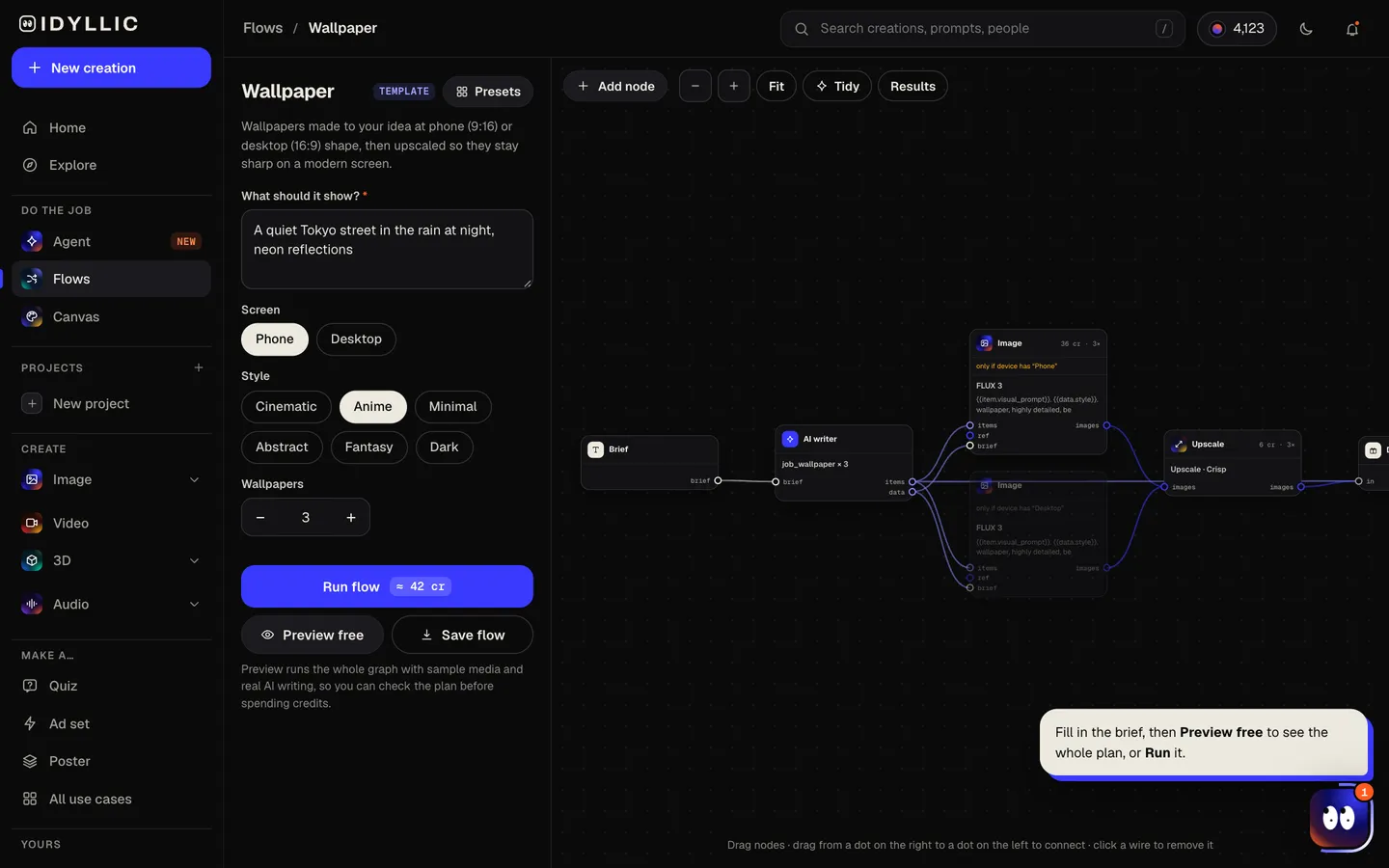
- 02
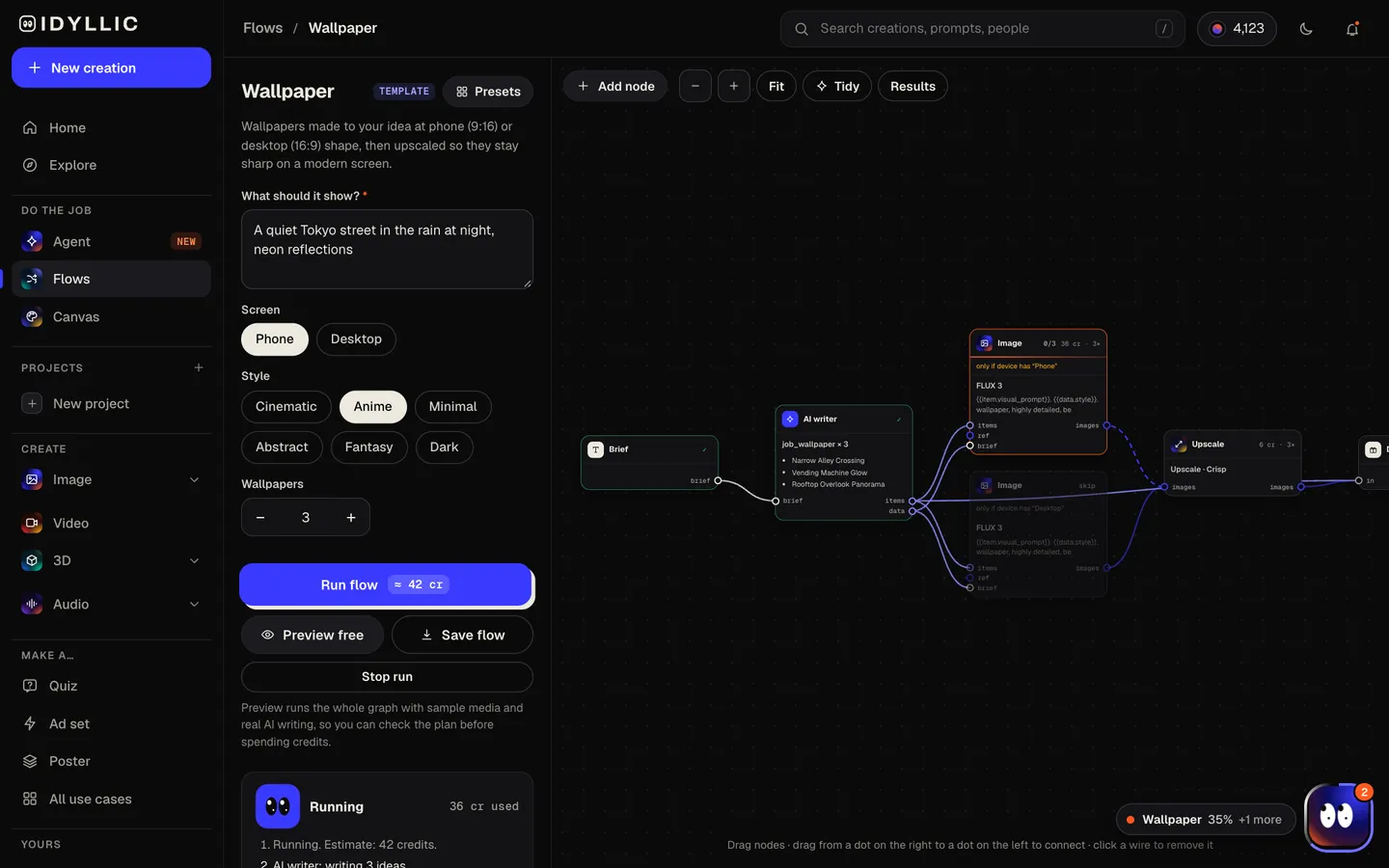
It plans, paints and upscales
The AI writer plans a different composition for each wallpaper, leaving a calm area where the clock or icons sit. FLUX 3 paints each one, then it is upscaled 2x. Preview the whole flow free before you run it.
- 03
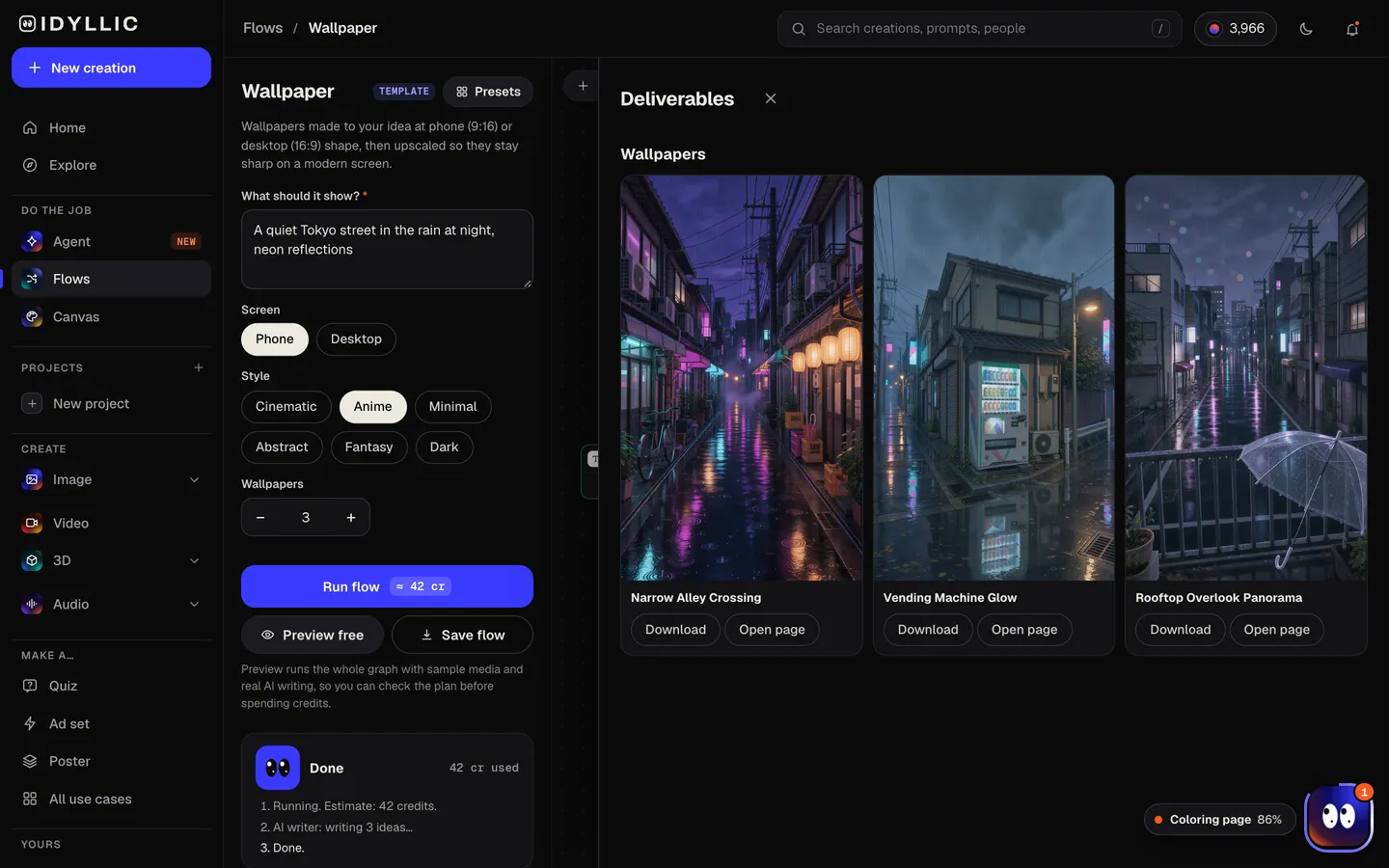
Compare the set
Every wallpaper lands side by side at its full shape, so you can see which one works behind your icons, which is too busy, and which belongs on the lock screen.
- 04
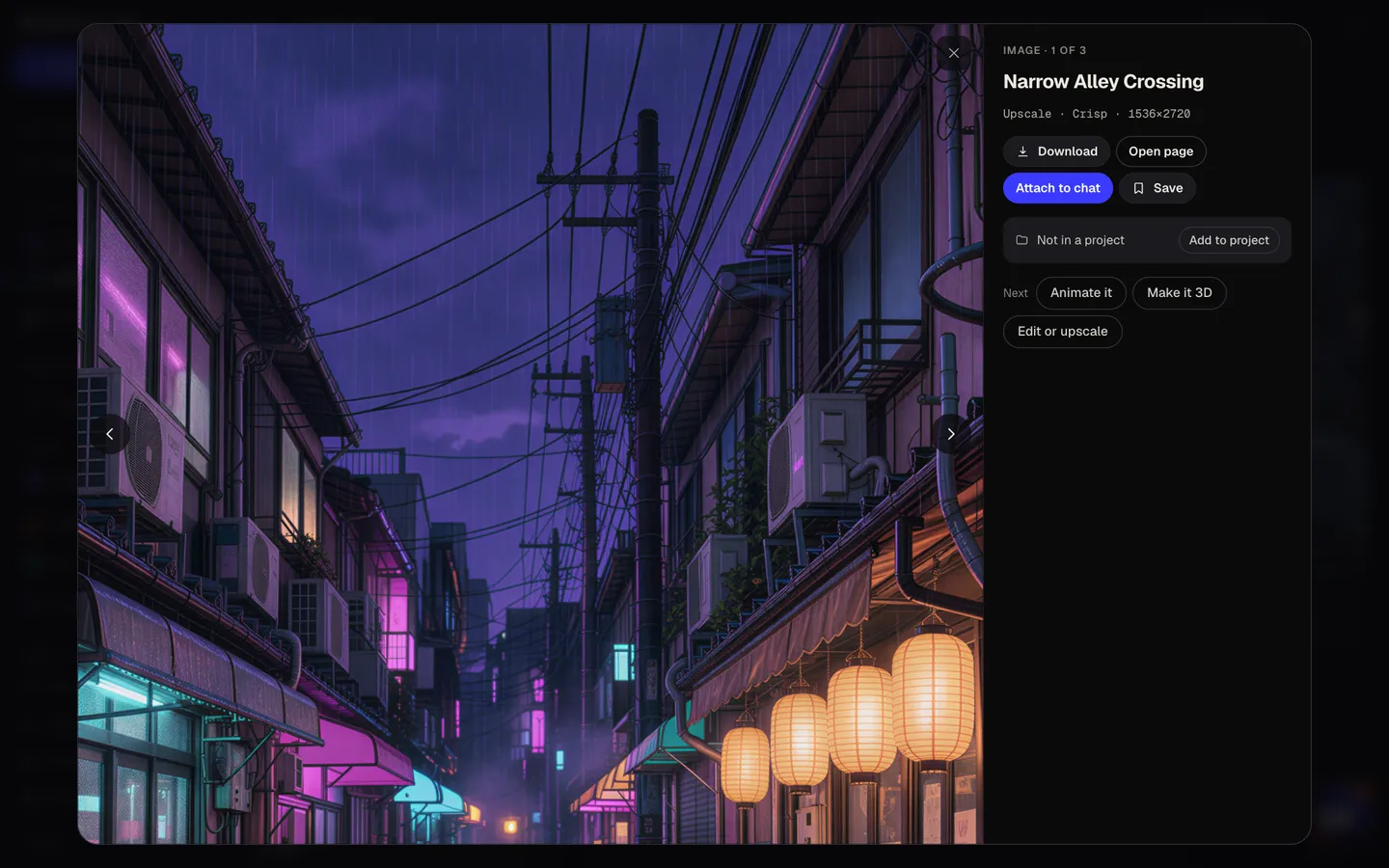
Download or keep going
Open one full size and download it. Or keep going in Canvas: expand a phone wallpaper sideways into a desktop one, erase a detail, upscale again, or animate it.
Why it beats
a template
Shaped for the screen, not cropped to it
Phone wallpapers are composed at 9:16 and desktop wallpapers at 16:9 from the start, so the subject sits where your screen shows it instead of being cut off by a crop.
Room for the clock and icons
The AI writer plans every composition with a calm area where the lock-screen clock, widgets or desktop icons go, so the picture still reads with everything on top.
Upscaled before it reaches you
Each wallpaper goes through an upscale step at the end of the flow, so edges and texture hold up on dense phone screens and large monitors.
Three takes on one idea
Describe one scene and get three different compositions: a wide view, a close detail, a moodier version. Keep one, or use two as a matching lock and home screen pair.
Six looks, any subject
Cinematic, Anime, Minimal, Abstract, Fantasy or Dark. The style setting carries the look across the whole set, and you can describe the scene in any language.
Adjust anything in Canvas
Select an area and change it, erase a stray object, expand the edges to a wider screen or upscale once more for a 4K monitor.
What makes a wallpaper work behind icons
- Keep the top third of a phone wallpaper quiet. The clock and notifications sit there.
- Keep the subject near the center on phones. Most are taller than 9:16, so the sides trim slightly.
- On desktops, put the subject in the left or right third, away from the dock and the icon grid.
- One accent color beats a busy palette. Icons and widgets need something calm to sit on.
- Dark wallpapers suit dark mode and OLED screens. Ask for a true black background.
- Run the same idea twice for a pair: the busier wallpaper on the lock screen, the calmer one behind your apps.
Wallpaper sizes for phones and monitors
| iPhone 17 Pro Max | 1320×2868 px | About 19.5:9. A 9:16 wallpaper fills the height and trims a little at the sides |
|---|---|---|
| iPhone 17 Pro | 1206×2622 px | Same shape as the Pro Max |
| Full HD monitor | 1920×1080 px | 16:9, the same shape as a desktop wallpaper |
| 1440p monitor | 2560×1440 px | 16:9 |
| 4K monitor | 3840×2160 px | 16:9. Upscale once more in Canvas for the sharpest result |
| MacBook Air 13-inch | 2560×1664 px | About 16:10. A 16:9 wallpaper trims slightly at the sides |
The flow makes phone wallpapers at 9:16 and desktop wallpapers at 16:9, then upscales them 2x. Most phones and laptops are a little taller or narrower than that, so keep the subject away from the edges.
Steal a brief
Each one opens the flow with the brief filled in. Change anything before you run it.
A single red torii gate in thick morning fog, muted grey, empty sky at the top
A misty Scandinavian pine forest at sunrise, soft light through the trees, calm greens
A cozy anime bedroom at night, rain on the window, a warm desk lamp, lo-fi colors
A samurai on a cliff under a huge red moon, drifting mist, ink-wash texture
Liquid glass shapes in a peach and lavender gradient with soft film grain
A thin neon blue wave across a true black background with a subtle glow
A cyberpunk skyline after rain, purple and teal signs reflected in wet streets
Dark marble with fine gold veins, minimal and elegant
Pastel clouds at dusk in pink and lilac with a few tiny stars
Questions
Is the AI wallpaper generator free?
You can preview the whole flow free, with real AI planning and sample images. Running it for real is on Plus ($10.50/mo, billed yearly) and up, and uses 42 credits for 3 wallpapers. The free plan also includes 3 free images a day in the image studio.
What resolution are the wallpapers?
Each one is made at 9:16 for phones or 16:9 for desktops, then upscaled 2x, which keeps it sharp on phone screens and on Full HD or 1440p monitors. For a 4K monitor, open it in Canvas and upscale once more.
How do I make a phone wallpaper instead of a desktop one?
Pick Phone or Desktop under Screen in the brief. Phone wallpapers are composed tall with a calm area at the top for the clock; desktop wallpapers are composed wide with space for your icons.
Can I turn a phone wallpaper into a desktop wallpaper?
Yes. Open it in Canvas and expand the sides to a wider shape; the new area is filled to match the scene. Or run the flow again with Desktop selected for a composition made for a wide screen.
Why does my wallpaper look cropped on my phone?
Most phones are taller than 9:16 (recent iPhones are about 19.5:9), so the phone fills the height and trims a little from each side. Keep the subject near the center and it survives the crop.
Can I change one detail without starting over?
Yes. In Canvas, select the area and describe the change, or erase an object. The rest of the wallpaper stays as it was.
Can I write the prompt in another language?
Yes. Prompts work in any language, so describe your wallpaper in whichever language is easiest.
Can I sell wallpaper packs I make here?
Paid plans include a commercial license and private mode, and running the flow is on Plus and up, so wallpapers you make with it can be sold or used for a brand.
Make something else
Everything you can make

Your turn.
Preview the whole flow free. No credit card.